from crewai import Agent, Crew, Process, Task
from crewai_tools import SerperDevTool
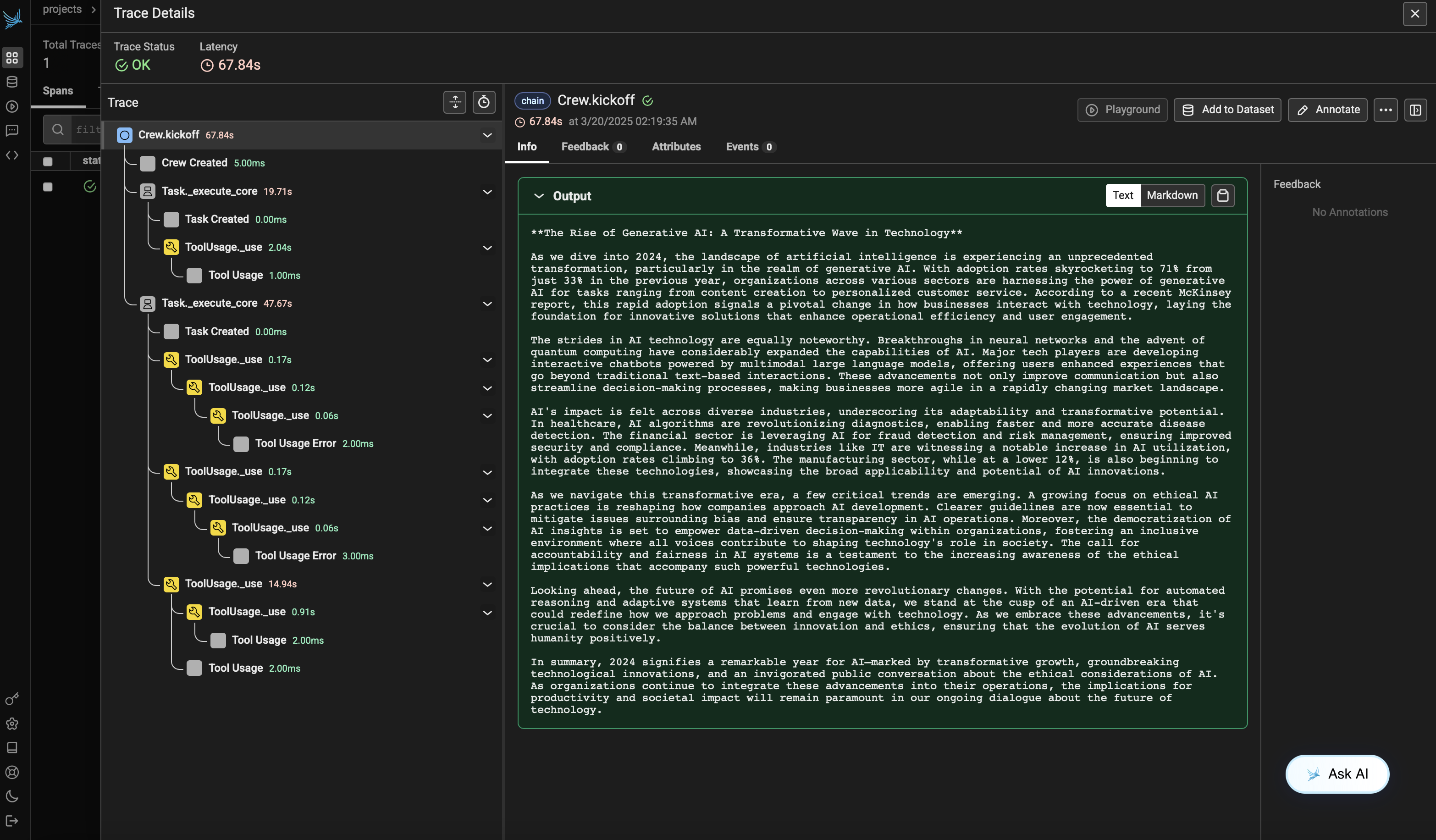
from openinference.instrumentation.crewai import CrewAIInstrumentor
from phoenix.otel import register

# setup monitoring for your crew
tracer_provider = register(
    endpoint="http://localhost:6006/v1/traces")
CrewAIInstrumentor().instrument(skip_dep_check=True, tracer_provider=tracer_provider)
search_tool = SerperDevTool()

# Define your agents with roles and goals
researcher = Agent(
    role="Senior Research Analyst",
    goal="Uncover cutting-edge developments in AI and data science",
    backstory="""You work at a leading tech think tank.
    Your expertise lies in identifying emerging trends.
    You have a knack for dissecting complex data and presenting actionable insights.""",
    verbose=True,
    allow_delegation=False,
    # You can pass an optional llm attribute specifying what model you wanna use.
    # llm=ChatOpenAI(model_name="gpt-3.5", temperature=0.7),
    tools=[search_tool],
)
writer = Agent(
    role="Tech Content Strategist",
    goal="Craft compelling content on tech advancements",
    backstory="""You are a renowned Content Strategist, known for your insightful and engaging articles.
    You transform complex concepts into compelling narratives.""",
    verbose=True,
    allow_delegation=True,
)

# Create tasks for your agents
task1 = Task(
    description="""Conduct a comprehensive analysis of the latest advancements in AI in 2024.
    Identify key trends, breakthrough technologies, and potential industry impacts.""",
    expected_output="Full analysis report in bullet points",
    agent=researcher,
)

task2 = Task(
    description="""Using the insights provided, develop an engaging blog
    post that highlights the most significant AI advancements.
    Your post should be informative yet accessible, catering to a tech-savvy audience.
    Make it sound cool, avoid complex words so it doesn't sound like AI.""",
    expected_output="Full blog post of at least 4 paragraphs",
    agent=writer,
)

# Instantiate your crew with a sequential process
crew = Crew(
    agents=[researcher, writer], tasks=[task1, task2], verbose=1, process=Process.sequential
)

# Get your crew to work!
result = crew.kickoff()

print("######################")
print(result)